Subscribe to our events calendar to add our events to your personal calendar automatically! Manage your own notification settings and unsubscribe at any time. Preview calendar above.

Show calendar subscription instructions

Subscription URL:

Apple

View help article

On your iPhone

  1. In Calendar, tap Calendars > Add Calendar > Add Subscription Calendar.
  2. Enter the calendar’s web address, then tap Subscribe.
  3. Enter a name for the calendar and choose a color to help you identify it on your calendar.
  4. Choose iCloud from the Account menu, then click Add.

On your Mac

  1. In Calendar, choose File > New Calendar Subscription.
  2. Enter the calendar’s web address, then click Subscribe.
  3. Enter a name for the calendar and choose a color to help you identify it on your calendar.
  4. Choose iCloud from the Location menu, then click OK.
Email me the subscription link (note: will only work with iPad/iPhone using Apple’s Mail and Calendar apps)

Google Calendar

View help article

Use a link to add a public calendar

Important: You can only subscribe to a calendar from calendar.google.com.

  1. On your browser, open Google Calendar in desktop view.
  2. On the left, next to “Other calendars,” click Add other calendars Add other calendars and then From URL.
  3. Enter the URL of the published calendar.
  4. Click Add calendar.

    • The calendar displays on the left, under “Other calendars.”

Add a calendar from a URL


Outlook

View help article

Subscribe to a calendar

Note: When you subscribe to a calendar, your calendar will automatically refresh if the other calendar is updated. This can sometimes take more than 24 hours.

  1. Sign in to Outlook.com.Sign in
  2. Select Calendar  Calendar icon from the navigation pane and click  Icon on button to add a folder in Journal Add calendar.​​​​​​​
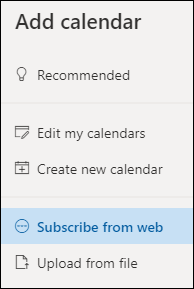
  3. Select Subscribe from web.Subscribe to a calendar
  4. Enter the URL for the calendar.

  5. Select Import.